> ## Documentation Index
> Fetch the complete documentation index at: https://docs.clarky.ai/llms.txt
> Use this file to discover all available pages before exploring further.
# Inbox Overview
> Manage all your customer conversations in one place
## What is the Inbox?
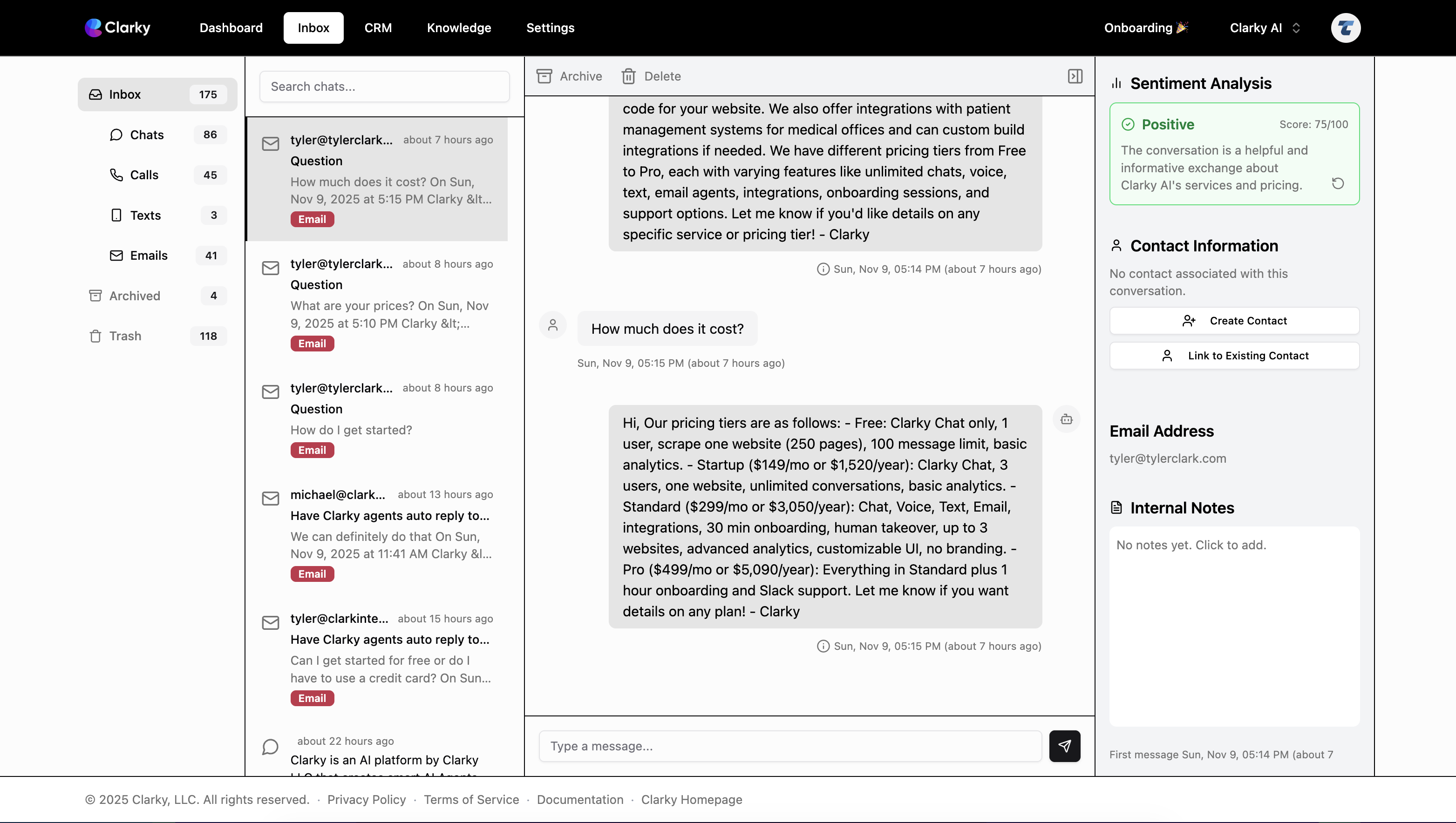
The Inbox is your central hub for viewing and managing all customer conversations across chat, voice, text/SMS, and email channels. Every interaction is organized, searchable, and easily accessible.
 ## Key Features
All channels in one place
See conversations as they happen
Jump into conversations when needed
Find any conversation quickly
## Inbox Layout
### Conversation List
The left panel shows all conversations:
* **Most Recent First**: Newest conversations appear at the top
* **Channel Icons**: Identify the communication channel
* **Preview Text**: See the latest message
* **Unread Counts**: Number of unread messages
### Conversation View
The main panel displays the selected conversation:
* **Full Message History**: Complete conversation thread
* **Customer Info**: Contact details and history
* **Quick Actions**: Take over, link to CRM, add notes
* **Channel Context**: Specific details for the channel
### Sidebar
The right panel shows contextual information:
* **Sentiment Analysis**: Conversation sentiment over time
* **Contact Profile**: Customer name, email, phone
* **Conversation Details**: Duration, status, channel
* **CRM Link**: Associated contact record
* **Tags and Notes**: Custom labels and annotations
## Accessing the Inbox
Click **"Inbox"** in the main navigation.
Scroll through the list or use search and filters.
Click any conversation to view the full details.
## Real-Time Features
### Live Conversation Indicators
See when users are actively chatting:
* **Active**: User is currently in the conversation
* **Typing Indicator**: Agent or user is typing
* **Last Seen**: Time of last message
### Notifications
Get notified when:
* New conversation starts
* User sends a message in an active conversation
* Conversation needs human attention
* User has been waiting too long
Configure notifications in **Settings > Notifications**.
## Next Steps
Learn about managing conversations
Take control when needed
Find conversations quickly
Connect conversations to contacts
## Key Features
All channels in one place
See conversations as they happen
Jump into conversations when needed
Find any conversation quickly
## Inbox Layout
### Conversation List
The left panel shows all conversations:
* **Most Recent First**: Newest conversations appear at the top
* **Channel Icons**: Identify the communication channel
* **Preview Text**: See the latest message
* **Unread Counts**: Number of unread messages
### Conversation View
The main panel displays the selected conversation:
* **Full Message History**: Complete conversation thread
* **Customer Info**: Contact details and history
* **Quick Actions**: Take over, link to CRM, add notes
* **Channel Context**: Specific details for the channel
### Sidebar
The right panel shows contextual information:
* **Sentiment Analysis**: Conversation sentiment over time
* **Contact Profile**: Customer name, email, phone
* **Conversation Details**: Duration, status, channel
* **CRM Link**: Associated contact record
* **Tags and Notes**: Custom labels and annotations
## Accessing the Inbox
Click **"Inbox"** in the main navigation.
Scroll through the list or use search and filters.
Click any conversation to view the full details.
## Real-Time Features
### Live Conversation Indicators
See when users are actively chatting:
* **Active**: User is currently in the conversation
* **Typing Indicator**: Agent or user is typing
* **Last Seen**: Time of last message
### Notifications
Get notified when:
* New conversation starts
* User sends a message in an active conversation
* Conversation needs human attention
* User has been waiting too long
Configure notifications in **Settings > Notifications**.
## Next Steps
Learn about managing conversations
Take control when needed
Find conversations quickly
Connect conversations to contacts