

What is the Dashboard?
The Dashboard is your central hub for monitoring your AI agent’s performance. Get real-time insights into conversations, key metrics, and overall agent effectiveness. With the Clarky 2 redesign, the Dashboard (along with Ask Clarky, Inbox, CRM, Calendar, Context, and Settings) is always one click away in the sidebar.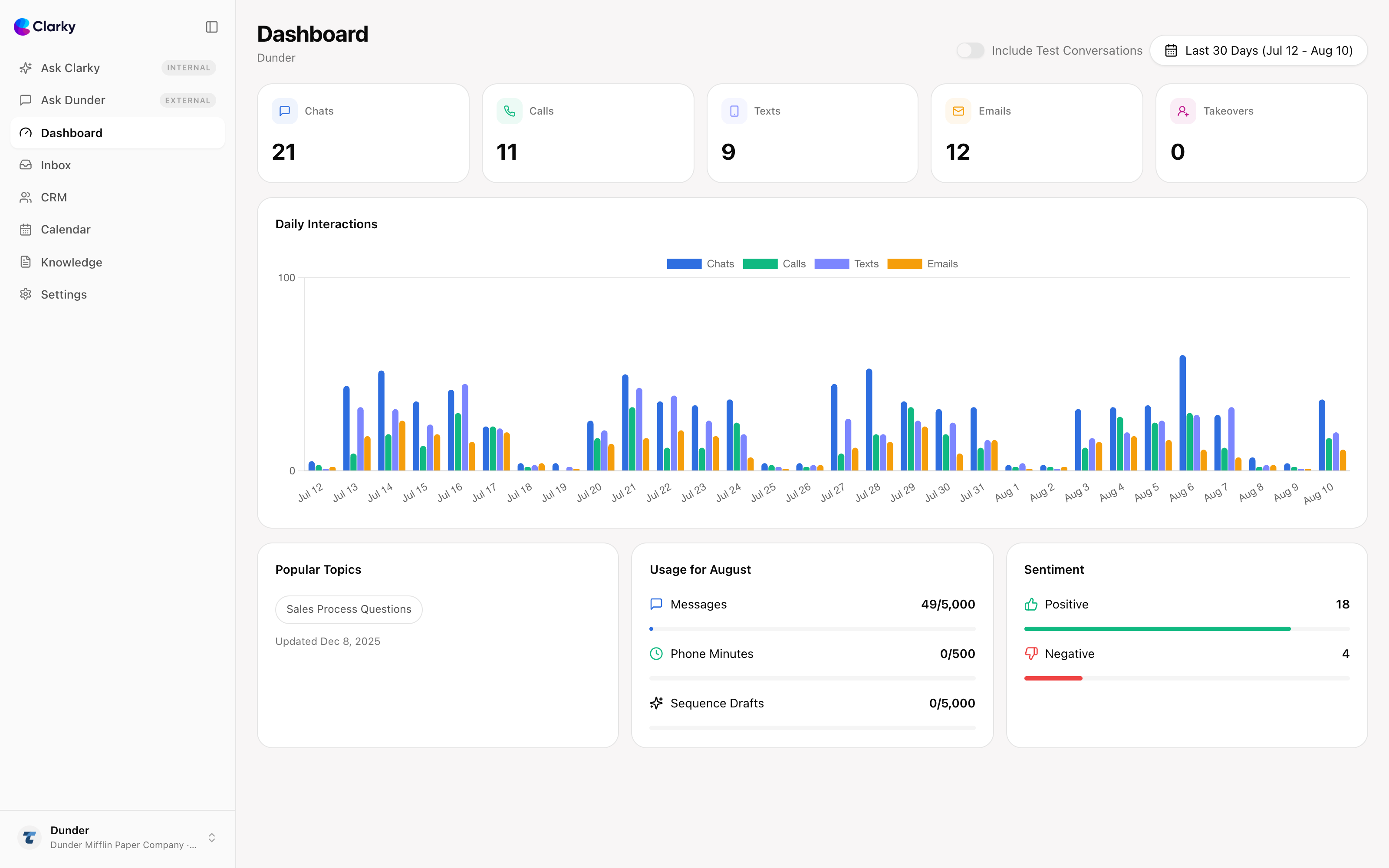
Key Sections
Key Metrics
View essential performance indicators
Analytics
Dive deep into conversation data
Recent Conversations
Quick access to latest interactions
Active Users
See who’s currently chatting
Accessing the Dashboard
Navigate to the Dashboard from any page:1
Select Your Agent
From the workspace, choose the agent you want to monitor.
2
Click 'Dashboard'
The Dashboard is usually the default landing page for each agent.
3
Explore Metrics
Scroll through to see all available insights.
Dashboard Layout
Top Overview Cards
The dashboard displays key metrics prominently at the top:- Total Conversations: Count of all conversations in the selected time period
- Average Response Time: How quickly your agent responds
- Resolution Rate: Percentage of conversations resolved without human help
- Active Now: Number of users currently in conversation
Conversation Timeline
Visual representation of conversation volume over time:- See peaks and valleys in customer inquiries
- Identify busy times of day
- Plan staffing accordingly
- Track growth trends
Channel Breakdown
View performance by channel:- Chat
- Voice
- Text/SMS
- Email
- Number of chat conversations
- Average chat duration
- Most common questions
- User satisfaction ratings
Time Range Selection
Filter data by different time periods:- Today: Real-time data for the current day
- Yesterday: Previous day’s performance
- Last 7 Days: Week-over-week trends
- Last 30 Days: Monthly overview
- Last 90 Days: Quarterly analysis
- Custom Range: Select specific dates
The time range selector affects all metrics and charts on the dashboard.
Quick Actions
Access common tasks directly from the dashboard:View All Conversations
Jump to the full inbox to see all conversations
Add Context
Quickly add to what your agent knows
Adjust Settings
Modify agent configuration
View Contacts
Access your CRM contacts
Recent Activity Feed
See latest interactions:- New conversations started
- Messages sent by the agent
- Human takeovers
- Escalations
- Completed conversations
- Timestamp: When it occurred
- Channel: Where it happened (chat, voice, text, email)
- Quick Preview: Snippet of the conversation
- Status: Active, completed, or needs attention
Performance Indicators
Visual indicators help you quickly assess performance:Status Indicators
- 🟢 Green: Everything operating normally
- 🟡 Yellow: Minor issues or areas needing attention
- 🔴 Red: Critical issues requiring immediate action
Trend Arrows
- ↗️ Up Arrow: Metric increasing compared to previous period
- ↘️ Down Arrow: Metric decreasing
- → Flat Arrow: No significant change
Notifications
The dashboard displays important notifications:Agent Needs Attention
Agent Needs Attention
Conversations waiting for human takeover.
Unanswered questions
Unanswered questions
Questions the agent could not answer, waiting in Context > Q&A.
System Alerts
System Alerts
Integration issues, payment problems, or configuration warnings.
Milestones
Milestones
Achievements like “1000th conversation” or high satisfaction ratings.
Best Practices
Check Daily
Check Daily
Make the dashboard part of your daily routine to stay on top of agent performance.
Watch Trends
Watch Trends
Pay attention to trends over time rather than day-to-day fluctuations.
Act on Insights
Act on Insights
When you notice patterns (busy times, common questions), adjust your agent or staffing.
Compare Channels
Compare Channels
Look at performance across channels to see which are most effective for your business.
Set Goals
Set Goals
Track specific metrics relevant to your business goals (e.g., lead capture rate, resolution time).
Customizing Your Dashboard
While the default dashboard layout works for most users, you can customize:- Which metrics appear at the top
- Time range defaults
- Notification preferences
- Data refresh frequency
Dashboard Settings
Customize your dashboard experience
Mobile Access
Access your dashboard on mobile:- Responsive design works on any device
- Mobile app provides optimized view
- Real-time notifications on your phone
- Quick actions available
Get Mobile App
Download the Clarky mobile app
Exporting Data
Export dashboard data for reports:- Download as CSV or Excel
- Schedule automated reports
- Share with stakeholders
- Integrate with BI tools
Data exports respect your selected time range and filters.
Next Steps
View Detailed Metrics
Explore individual performance metrics
Analyze Performance
Deep dive into analytics
Check Inbox
Review conversations
Improve Agent
Enhance your agent’s knowledge